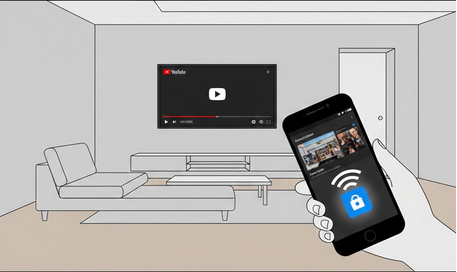
Watching YouTube on a big screen transforms the viewing experience. Casting lets you send videos directly from your Android phone to your TV without cables or complicated setups. Whether you are watching movies, tutorials, or music videos, the larger display and better audio make everything more immersive and enjoyable.
What Is Casting
Casting is a wireless technology that streams content from your phone to a compatible TV or streaming device. Your phone acts as a remote control while the TV handles the actual playback. This means you can browse other apps on your phone while the video continues playing on the big screen. It works over your local Wi-Fi network with minimal setup required.
Compatible Devices for Casting
Several devices and smart TVs support casting from YouTube on Android.
- Chromecast: Google’s dedicated casting device that plugs into any TV with an HDMI port.
- Smart TVs: Most modern smart TVs from Samsung, LG, Sony, and others have built-in cast support.
- Android TV: Devices running Android TV or Google TV support casting natively.
- Fire TV Stick: Amazon’s streaming device supports YouTube casting through the YouTube app.
- Game Consoles: PlayStation and Xbox support YouTube casting through their respective apps.
How to Cast from YouTube
- Connect to Wi-Fi: Make sure both your phone and TV are connected to the same Wi-Fi network.
- Open YouTube: Launch the YouTube app on your Android device.
- Tap the Cast Icon: Look for the cast icon at the top of the screen and tap it.
- Select Your Device: Choose your TV or streaming device from the list of available devices.
- Play a Video: Start any video, and it will play on your TV while your phone acts as the remote.
Casting with YouTube Vanced
YouTube Vanced supports casting to Chromecast and other compatible devices. You get the same casting functionality as the official app with the added benefit of browsing your library ad-free on your phone. However, note that ads may still appear on the TV-side YouTube app depending on the receiving device’s configuration.
To cast with your full account access including playlists and subscriptions, make sure Vanced MicroG is installed for seamless Google account authentication.
Troubleshooting Casting Issues
- Same Network: Verify both devices are on the identical Wi-Fi network. Different networks prevent discovery.
- Restart Devices: Reboot your phone, TV, and router if the cast icon does not appear.
- Update Apps: Ensure YouTube and your TV’s firmware are updated to the latest versions.
- Check Permissions: Allow local network access in your phone’s settings for the YouTube app.
- Disable VPN: VPN connections can interfere with local network device discovery.
Who Benefits from Casting YouTube
- Families: Households watching content together on a shared big screen.
- Music Listeners: Users who want YouTube music playing through their TV’s better speakers.
- Tutorial Followers: People following along with cooking, workout, or DIY videos on a larger display.
- Movie Watchers: Viewers who enjoy long-form content on a cinematic-sized screen.
Final Thoughts
Casting YouTube to your TV is one of the easiest ways to upgrade your viewing experience. The wireless setup takes seconds, and the big-screen immersion makes every video more enjoyable. Whether you use the official app or YouTube Vanced for a cleaner mobile browsing experience, casting brings YouTube content to life on the screen it deserves.